
Designing a Self-Sufficient Workstation: (TL;DR)
As mentioned previously, a self-sufficient workstation should be offline capable, the goal is that the workstation should remain useful indefinitely without having to connect to the internet. And in order to make that a reality we’re going to start with the hardware.
The first thing you want to think about is: What is the physical platform that you want to build on? That’s just an overly complicated way to say, “What machine are we talking about?”. This decision could easily be based on what you already have, or what’s available in the marketplace, or what fits your budget if you’re starting from scratch.
Desktop vs. laptop
If you already have a machine you’re working with, then this isn’t much of a decision. However, if you’re trying to think outside the box or build from scratch, desktop versus laptop is an important consideration. Why would I choose one over the other? Each platform has advantages and disadvantages for our prepping scenario.
Desktops, for example, tend to be more repairable and have parts that can be swapped out more easily than a laptop. For example, if your video card dies, that can be replaced. For most laptops that’s soldered onto the mainboard. They also tend to have more flexibility with adding additional parts particularly if they come with various internal slots. Commonly desktops can be upgraded with much more memory and larger hard drives than a laptop.
Desktops have the advantage of longevity. A 10- or 15-year-old desktop can potentially be kept alive by scavenging RAM, drives, power supplies, GPUs, fans, and other components from other machines. With many modern laptops, one motherboard failure can effectively end the machine.
But that cuts both ways because in reality, most people don’t add additional upgrades to the desktop once they have what they want. And in our scenario those additional components may not be available anyway.
The downside is that desktops tend to be louder, hotter, and consume more energy than a laptop typically does. It also requires external components such as a monitor, UPS, keyboard, and mouse to function.
The advantage of a laptop is that they tend to be self-contained in that the monitor, keyboard, and mouse typically are built in. They consume considerably less power and newer ones can simply run off of solar panels directly if necessary. They are also portable, should that be a consideration, and easier to hide.
The laptop’s built-in battery, in a self-sufficiency scenario, is a significant advantage. A laptop essentially comes with its own UPS and can tolerate intermittent power—run from solar or a power station while power is available, charge the battery, then continue working when the external source disappears.
The downside is they tend not to be expandable, at least internally. If you have enough USB ports you can add external components to it but that increases your power requirements and takes away from the portability.
The other thing to note is that on laptops the RAM installed is generally shared between the computing power and the graphics. Whereas on a desktop a graphics card will typically have its own RAM installed. So that is to say, if you plan on doing some heavy-duty graphics or video work, you’ll probably want an independent graphics card that’s available in a desktop machine.
| Desktop | Laptop | |
| Pros | Easier to repair | Very low power consumption |
| Replaceable components | Built-in battery backup | |
| Highly expandable | Display/keyboard/mouse built in | |
| Greater storage capacity | Portable | |
| Greater RAM capacity | Easier to power from solar | |
| Better cooling | Easier to store or conceal | |
| Longer practical service life | Can operate during a power failure | |
| Standardized replacement parts | Requires very little physical space | |
| Cons | High power consumption | Difficult to repair |
| Requires a monitor | Proprietary components | |
| Requires keyboard and mouse | Limited internal expansion | |
| Needs a UPS for outages | Lower maximum RAM/storage | |
| More difficult to power from solar | Battery eventually wears out | |
| Generates more heat | Display failure affects entire system | |
| Not portable | Motherboard failure can total the machine | |
| Takes considerably more space | Newer models often have soldered components |
Avoid the “book”
Before we go too much further, I will add my very biased opinion that if you will be buying a new laptop or laptop-type computer, I would avoid machines that are named “Book”. These would be machines like “Chromebook”, “Google Book”. These are lower-powered machines that exist for the purpose of connecting to the internet. Given our scenario of a self-sufficient computer, they would be completely ineffective for pretty much anything we’re doing to this point.
CPU and memory requirements
They used to say you can’t be too rich or too beautiful. Now they say you can’t have too much RAM or too many CPU cores. (Okay maybe that’s just the techy guys that say that.) But the CPU you want and the memory that you install are important decisions up front. You want to get what you need for future-proofing as much as possible, but you don’t want to go crazy and overdo it.
The vast majority of machines in use today are barely used at all. They have a lot of memory (RAM) and fast CPUs and all they do is run the browser. In this scenario we’re flipping that script and so having a decent CPU and enough memory becomes more important. But even at that, today’s CPUs are really quite powerful. By the time you read this article, the CPUs that are available will change dramatically and will make this sound dated. But at least for reference we’ll name a few here as starting points. Remember, if it stays offline and you never have to upgrade, then you don’t need a faster CPU or more RAM. It’ll continue to work 2 years from now like it does today.
If you’re in the PC world there are Intel and AMD chips and at this point, they’re pretty comparable to each other. I know that sounds like anathema to those that view CPUs as a religion, and for different scenarios some have an advantage over others. A slower Intel will process video better than a slightly faster AMD (generally speaking) but for the vast majority of what your machine may be doing, the faster AMD will give you more raw power. But really both are going to do the trick.
There are hundreds of CPUs. Each with pluses and minuses that we can’t possibly go into for each of them here. However, if you do want a good comparison, the best site for that is called passmark.com ( also https://www.cpubenchmark.net/). Here you can get a very large chart comparing the different rankings of different CPUs. Remember, the faster and higher-end the CPU, the more energy it’s going to consume. And it could consume that energy even if you’re not using it at peak so you need to find the balance. Most of my desktops are currently Intel Core i3s and servers are Core i5s or AMD Ryzen 5s.
I would recommend that for any self-sufficient computer you should avoid machines (laptops in particular) that have CPUs that are called ARM or Celeron CPUs. They’re great for low-powered surfing with a browser but not sufficiently powerful for a standalone machine.
My off-the-cuff opinion typically is that, unless you go with an extremely cheap CPU or a very low-end machine, an average laptop and/or desktop will have a sufficient amount of power for pretty much anything you’re going to want to do.
Memory (RAM)
Right up front there’s a very important thing to keep in mind: memory (RAM) is not the same as hard drive or (storage). This can be confusing for some people because they’re measured in the same dimensions 16 GB, 32 GB etc. And even SSD drives use very similar technology to RAM so it can be even more confusing. Here’s the difference: RAM is what your computer uses to run when it’s turned on and you’re working. Shut down your system and whatever was in RAM goes away.
Storage, or the hard drive, is where all of your information is stored until you need it and continues to be safely stored there when the machine is turned off.
So if somebody says, “I need more memory,” that means RAM. If they say, “I need more storage space,” that’s hard drive.
Why more RAM make sense for an offline machine
When running a self-sufficient workstation, you’re more likely going to be multitasking a few different applications at one time. This is where RAM comes into play. You may simultaneously have a word processor, spreadsheet, and graphics program open to put together whatever you are working on, presentation report, how-to document, whatever it might be. Running multiple programs at the same time is where having more RAM is worth it. (Side note: If your machine does not have enough RAM for what you are trying to do, the operating system will try and use a file on the hard drive to replace memory that it needs. That slows down your working environment considerably.)
Often operating systems will try and gain acceptance by having a low entry level, like a 4 GB RAM minimum requirement, but the minimum requirement is not viable for everyday use. For a self-sufficient workstation I would recommend the minimum amount you need is 16 GB of RAM. There is an advantage going up to 32 but it can be quite costly. 64 GB of RAM or higher would be reserved for servers, which we will talk about in the future, but you also need to make sure that your operating system will actually use that amount of memory. Otherwise it’s a waste.
The system I do all my work on every day (including programming, database design, graphics, and building websites) has 16 GB RAM and I’ve never hit the ceiling yet. Not to say that I wouldn’t but at this point I have no reason to upgrade beyond that.
Hard Drives
Deciding on the hard drive isn’t particularly complicated. There are really only two decisions: what kind of hard drive and what capacity.
What type of hard drive?
There are two kinds of hard drives, spinning hard drives (or the more traditional ones) and SSD (solid state) hard drives. The more traditional spinning hard drives have been around for a very long time. They tend to be less expensive in higher capacities. However, they are more subject to damage from jostling or bumping when they’re turned on. They also consume more power. Generally, you would choose a spinning hard drive where
- cost is a significant consideration
- if it’s going to be in a desktop, as it doesn’t move very often.
- and you want a significantly higher capacity.
SSD, or solid-state drives, are newer but they have no moving parts. They’re basically RAM that doesn’t get erased. SSDs tend to be more expensive, don’t get as large as traditional drives, but they are less subject to damage from drops or jostling. Anecdotally, are said to have a shorter run life than a spinning hard drive. This would be the preferred hard drive in a laptop. Generally you would choose an SSD drive where
- A capacity of 1 TB or less is adequate.
- It’s going to be in a laptop.
- The power consumption is a consideration as they draw less power
If you really get into the nitty-gritty of building your own desktop, some people use a smaller SSD as the operating system root drive and then a spinning drive for all the data. We won’t necessarily cover that here but you can find that information readily available.
My current standalone workstation is a laptop with an Intel Core i7 CPU, 16 GB of RAM, and a 512 GB hard drive. As I said previously, that handles all of my needs, including graphics, video production, and database design. Although my hard drive is at about 75% full, I use an external hard drive to offload older archives that I don’t use on a regular basis. We’ll cover that in “The self-sufficient workstation- backups and power”.
External components
If your self-sufficient workstation is a desktop, you will need a monitor, keyboard, and mouse at a minimum. Although even if you choose a laptop you may still want to have an external monitor, keyboard, and mouse for convenience.
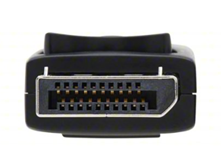
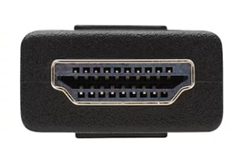
The monitor is simply a choice of what size you want and what video technology it is using. Typically it’s DisplayPort (DP) and HDMI. As long as your self-sufficient workstation has the output for either one of those, just make sure that your monitor matches. If your laptop has an HDMI port make sure that your monitor is an HDMI monitor.
| Figure 1 Display Port Adapter
|
Figure 2 HDMI Adapter
|
You will need a wired USB mouse and keyboard at least to initially set up your machine if you’re building it from scratch. If you prefer a wireless mouse and keyboard, typically using Bluetooth, that is a personal choice Keep in mind those are usually not able to be installed until after the operating system has been configured. Also keep in mind that a wireless mouse and keyboard will need a power source, either rechargeable by plugging into USB or batteries. To be self-sufficient I would suggest that you make a rechargeable one where you can recharge it by plugging it into a USB port.
If you are working with a desktop machine, you will also want to buy a headset and a webcam. More on that in other articles.
A few final thoughts
To the extent it’s possible, make sure that your self-sufficient workstation has repairable, replaceable, or even a few spare components. An extra mouse, keyboard, cables, or adapters is always a good idea.
Make sure you keep installation media, any manuals that came with your equipment, and all drivers that are needed on a thumb drive or some other medium that you can get to should the machine suffer a catastrophic failure and you need to rebuild it. Don’t depend on having to download something later. It may not be there.
There are a few nice-to-have items that are very helpful to keep yourself and your workstation useful.
- An assortment of USB cables and converters, types A, B, and C.
- Type A on one end, type C on the other.
- A USB dock that you can plug into your workstation, giving you more USB ports if needed
- A USB external hard drive
- Smaller thumb drives for copying files back and forth or making a bootable disk
- A small computer repair toolkit
- Video converter adapters, DP to HDMI, vice versa
- An additional power supply for your laptop
- And of course, always plug it into a power strip with surge protection.
Not an endorsement, just some examples.
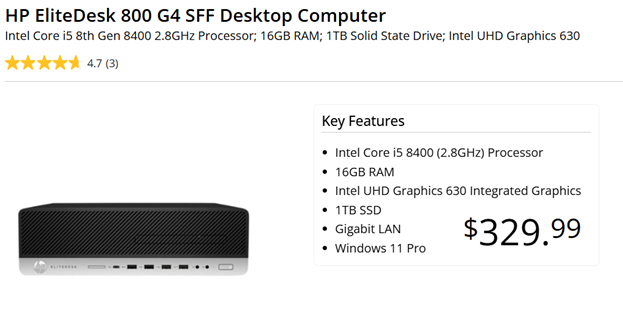
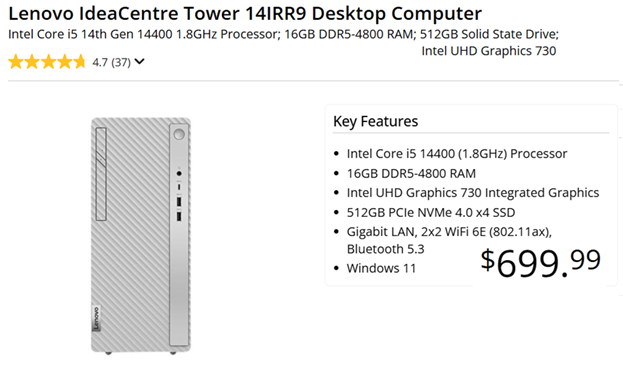
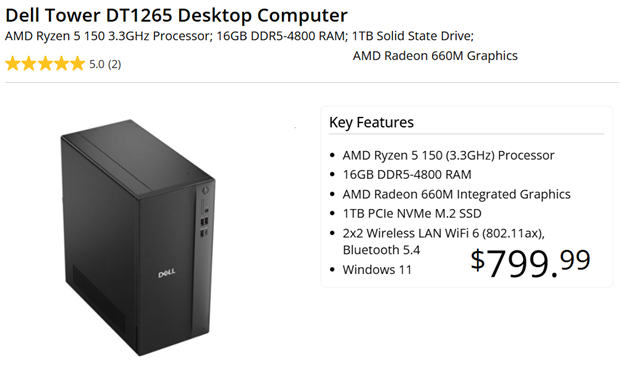
Below are some ads for machines that I either have purchased or would purchase to be used as a self-sufficient workstation. I’m not particularly endorsing any brand or model. These are just good examples of what has been talked about above. (These were taken in October 2026 for reference.)
For what it’s worth this is being written on a Lenovo ThinkPad with 16 GB of RAM, a 500 GB hard drive (which is about 75% full), Windows 11, and it’s an Intel Corei7 CPU.


TL;DR — Designing a Self-Sufficient Workstation
- Goal: Build a computer that remains useful indefinitely without Internet access
- Desktop vs. laptop is the first major choice. Desktops are easier to repair, upgrade, and keep running with scavenged replacement parts. Laptops use less power, are portable, take less space, and include their own display, keyboard, and battery backup.
- Desktop advantage: Better repairability, expansion, cooling, RAM/storage capacity, and long-term serviceability. Disadvantage: Higher power consumption, more space, and dependence on a monitor, keyboard, mouse, and UPS.
- Laptop advantage: Very low power consumption, built-in battery/UPS, portability, and easier operation from solar or portable power. Disadvantage: Harder to repair and upgrade, with many modern components soldered to the motherboard.
- Avoid Internet-dependent, low-powered “Book”-style computers such as Chromebooks for this particular offline/self-sufficient role.
- CPU: You don’t need an extreme processor. A reasonable modern Intel or AMD CPU should handle most offline tasks. Faster CPUs generally consume more power, so balance performance against energy requirements.
- RAM: 16 GB is the recommended minimum, with 32 GB useful for heavier multitasking. 64 GB+ generally isn’t necessary for a normal workstation.
- Storage: HDDs provide inexpensive high capacity but consume more power and are mechanically vulnerable. SSDs consume less power, tolerate movement better, and are preferable for laptops. A combination of a smaller SSD for the OS and larger HDD for data can make sense in desktops.
- Real-world reference system: An Intel Core i7, 16 GB RAM, and 512 GB drive is described as sufficient for programming, databases, graphics, and video work, with external storage used for archives.
- Peripherals: Keep wired USB keyboard/mouse capability available even if you normally use wireless devices. Match monitors and adapters to available HDMI/DisplayPort connections.
- Plan for failure: Keep spare cables, adapters, mouse/keyboard, power supplies, repair tools, external drives, and USB thumb drives available.
- Most important preparedness principle: Keep OS installation media, drivers, manuals, and recovery tools locally available. Don’t assume you’ll be able to download them after a failure.